

Blog:
User Instruction for the Debugging Tool of RM_ARM+ Protocol Preparation
Tool Acquisition
The End-Ecosystem Protocol Tool is now available for download. Click the link to obtain it: End-Ecosystem Protocol Tool Official Website.
Hardware Connection
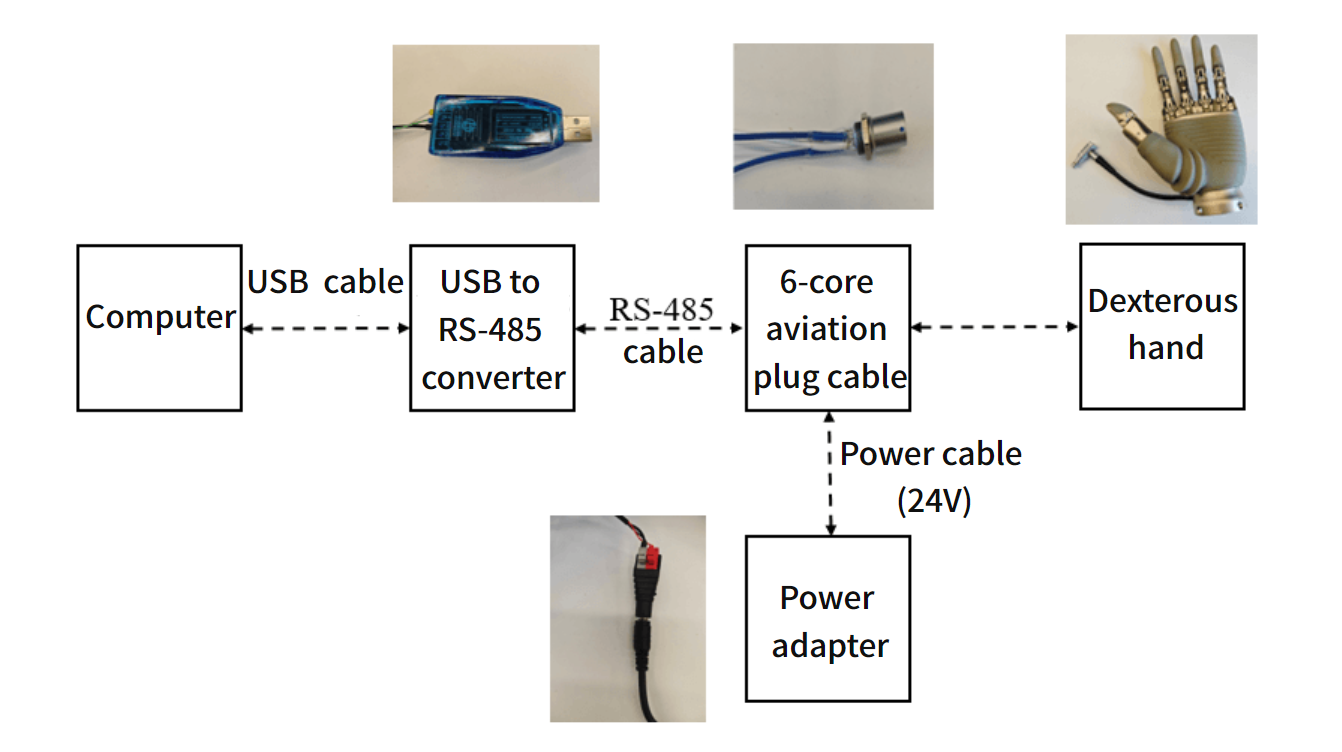
- Computer Connection: Use a 485-to-USB cable to connect to the computer.
- Arm Connection: Connect to the corresponding port of the Dexterous Hand via the aviation plug cable. Please align the red/blue markings to ensure proper interface alignment.
For details on the Dexterous Hand hardware interface, please refer to the image below:
 |
|---|
Parameter Configuration
Communication Monitoring
Monitor communication data in real-time via the serial port, including sent data, received data, and data format, among other information. Supports up to 50Hz communication frequency, facilitating data transmission analysis and debugging for developers.
Serial Port Configuration
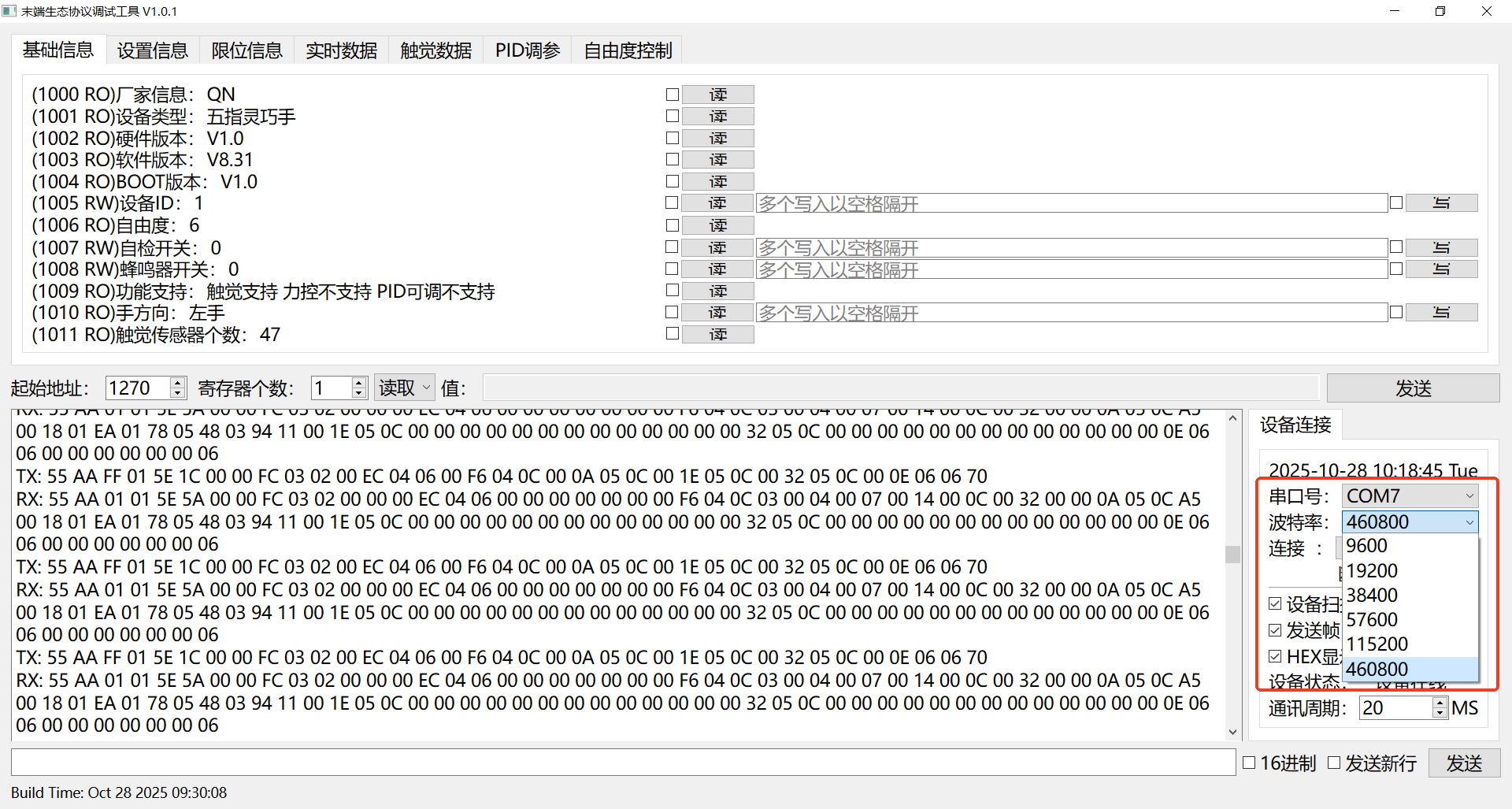
Serial Port Selection: Choose the communication port to which the current device is connected from the dropdown menu.
Baud Rate Configuration
Supports quick selection from preset values (e.g., 9600, 19200, 38400, 57600, 115200, 460800) and also supports manual entry of custom values(Supports up to 460800 baud rate).
Note
This parameter must be set according to the Dexterous Hand hardware specifications.
The following images can be used as a reference during specific operations:
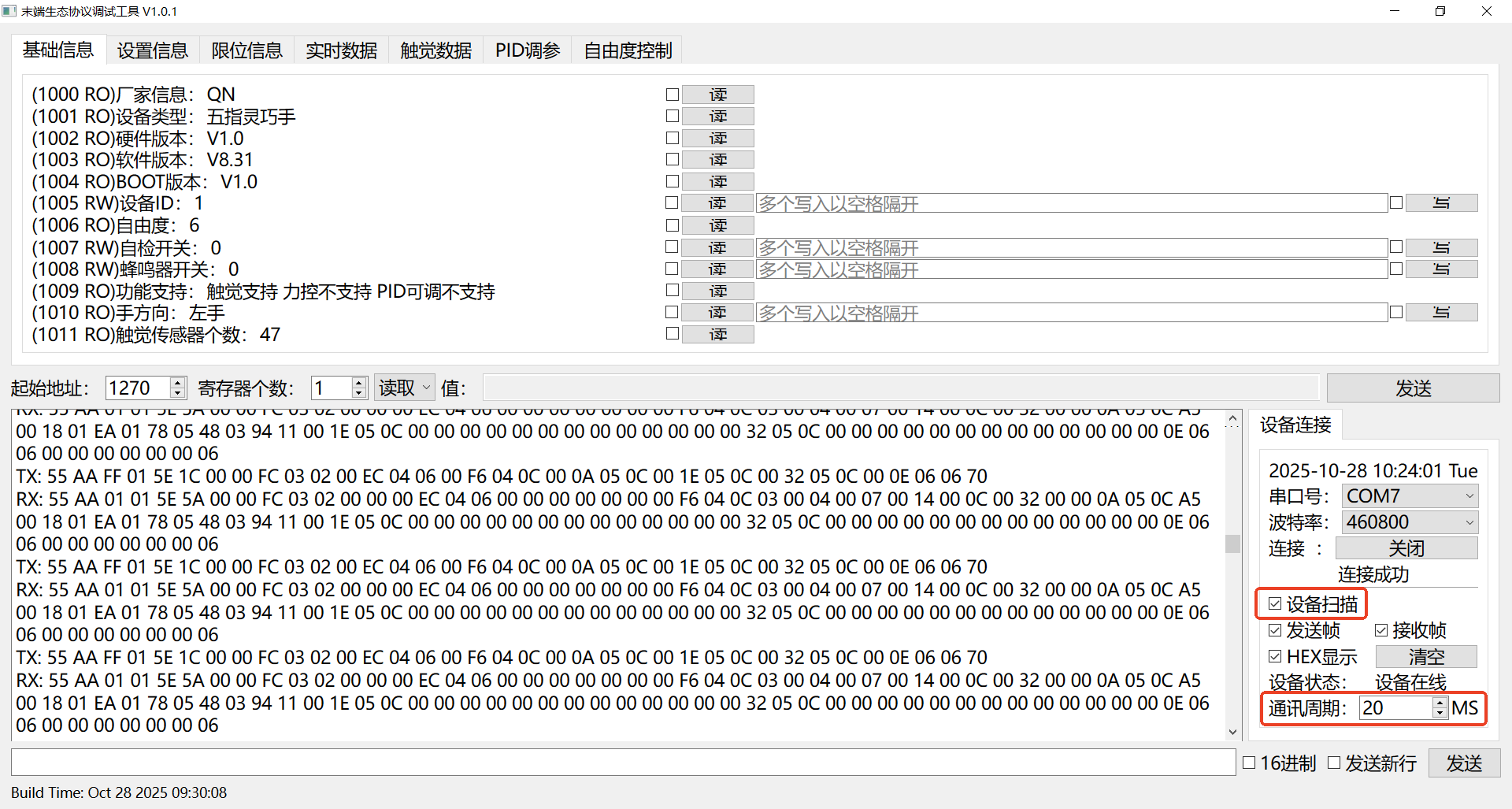
Scan Device
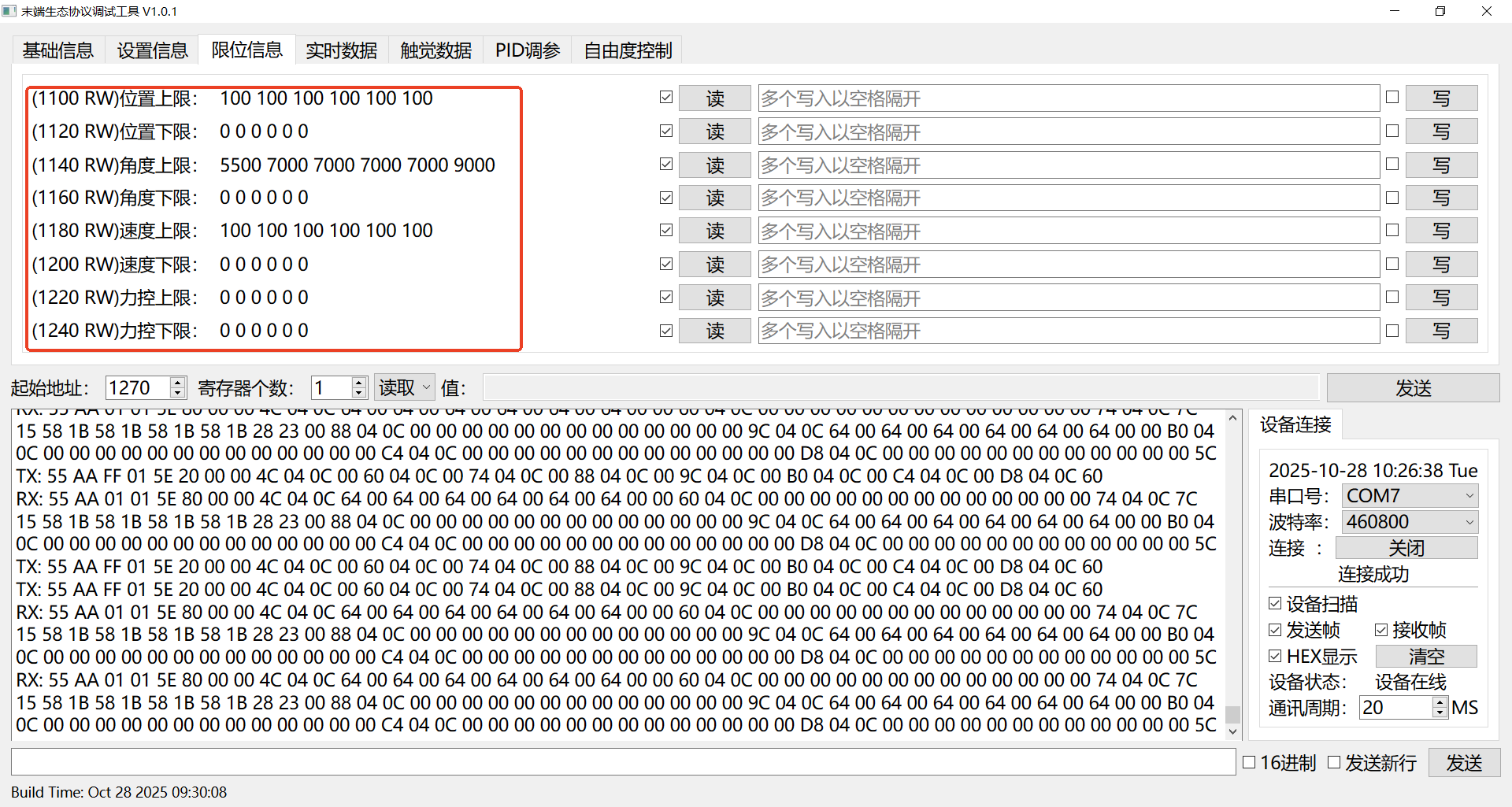
This function is used to read the device's basic information and all limit information.
Scanning Process:
Read Basic Information:
Retrieve the device's basic information from registers with addresses
1000-1011.Read Limit Information:
Retrieve all limit parameters including position, angle, speed, and torque.
Start Real-time Monitoring:
Begin continuously reading the device's real-time status data at a cycle of
20ms.
| Basic Information | Limit Information |
|---|---|
 |  |
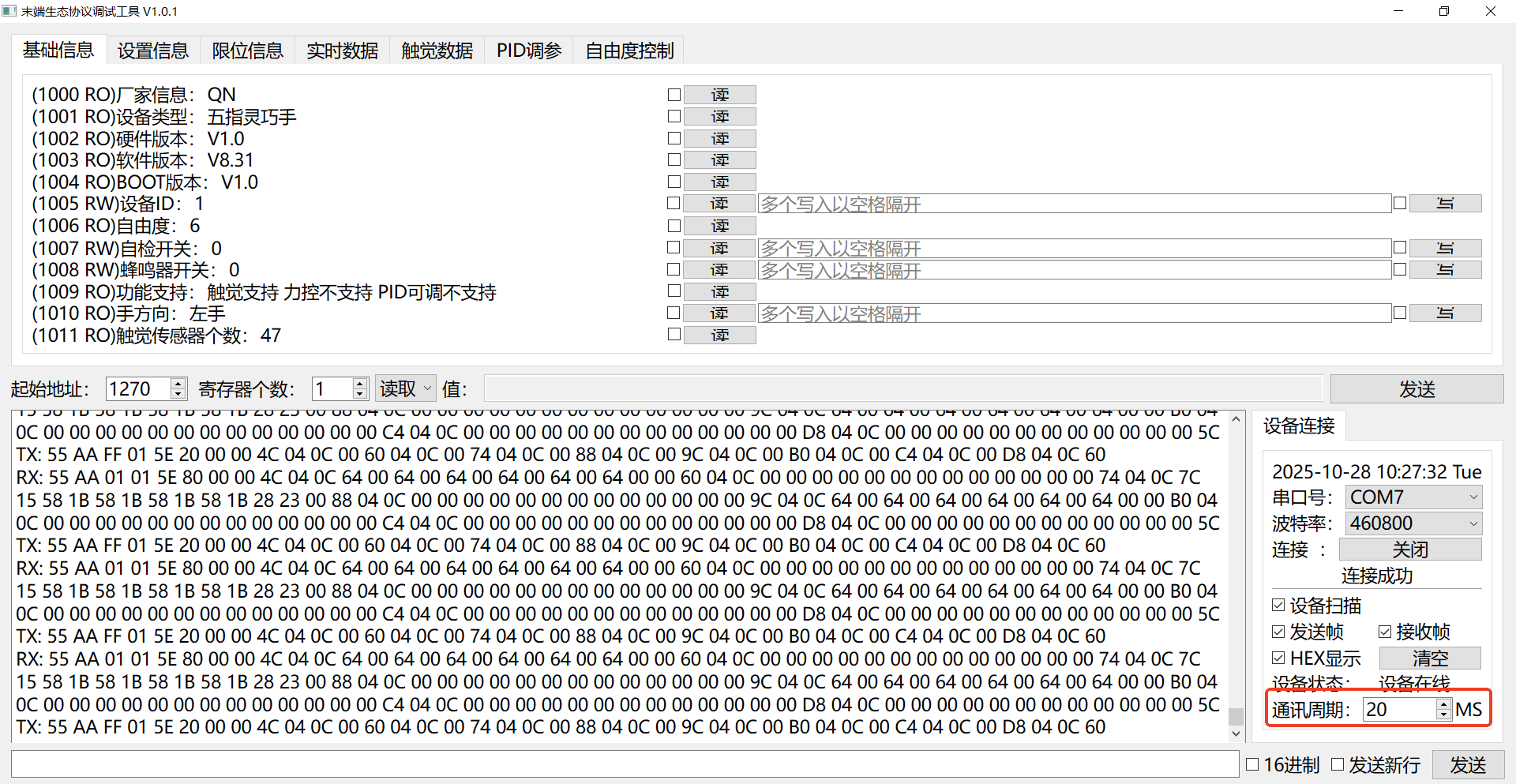
Periodically Read Registers
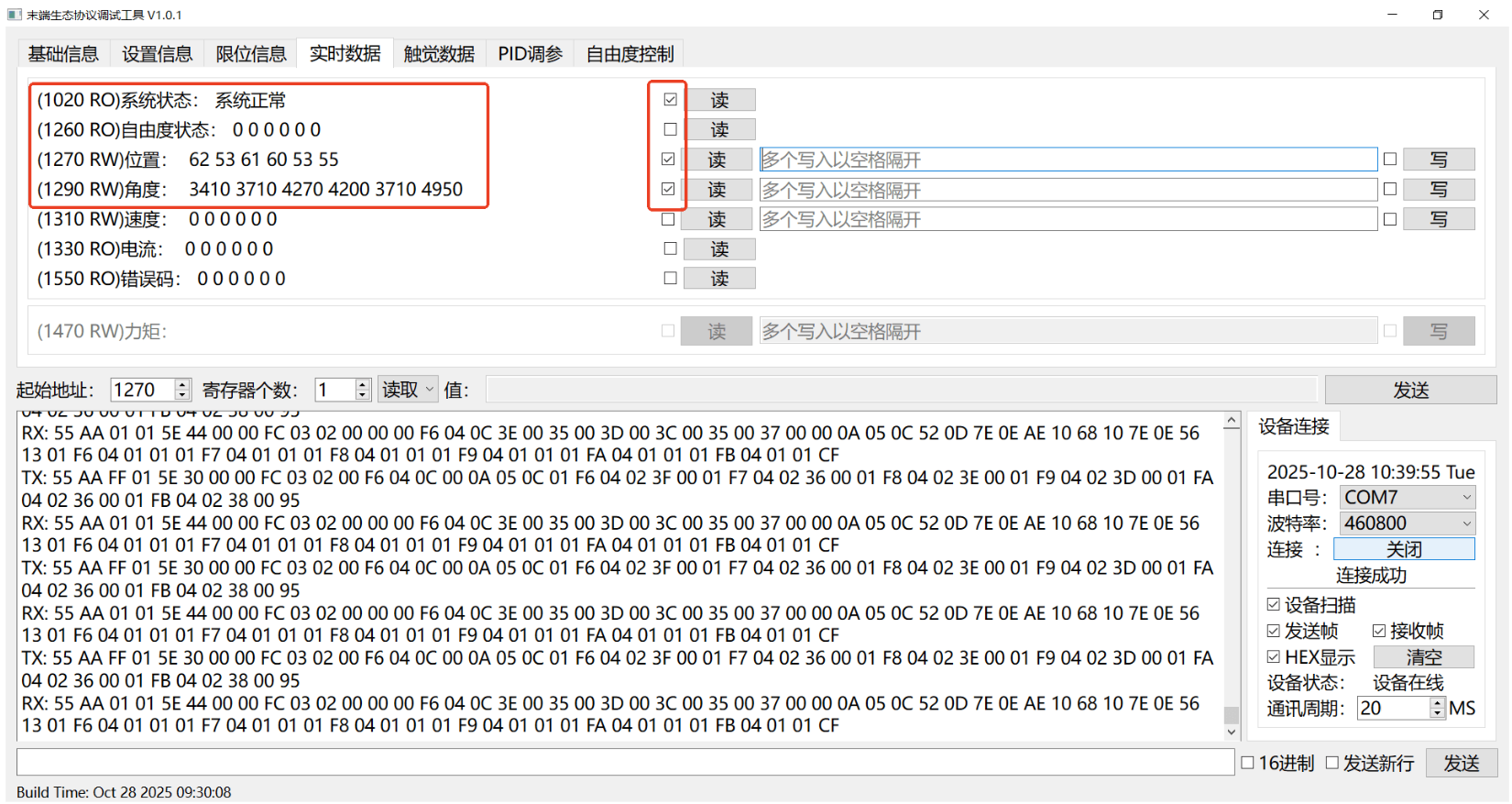
By checking the read option corresponding to the target register and configuring the communication cycle, the system will automatically send a read command for that register in each communication cycle.
Application Example: As shown in the figure below, the system is configured to periodically read position, angle, and other register data every 20ms, enabling continuous tracking and visual analysis of the device's motion status.
Real-time Data Reading and Writing
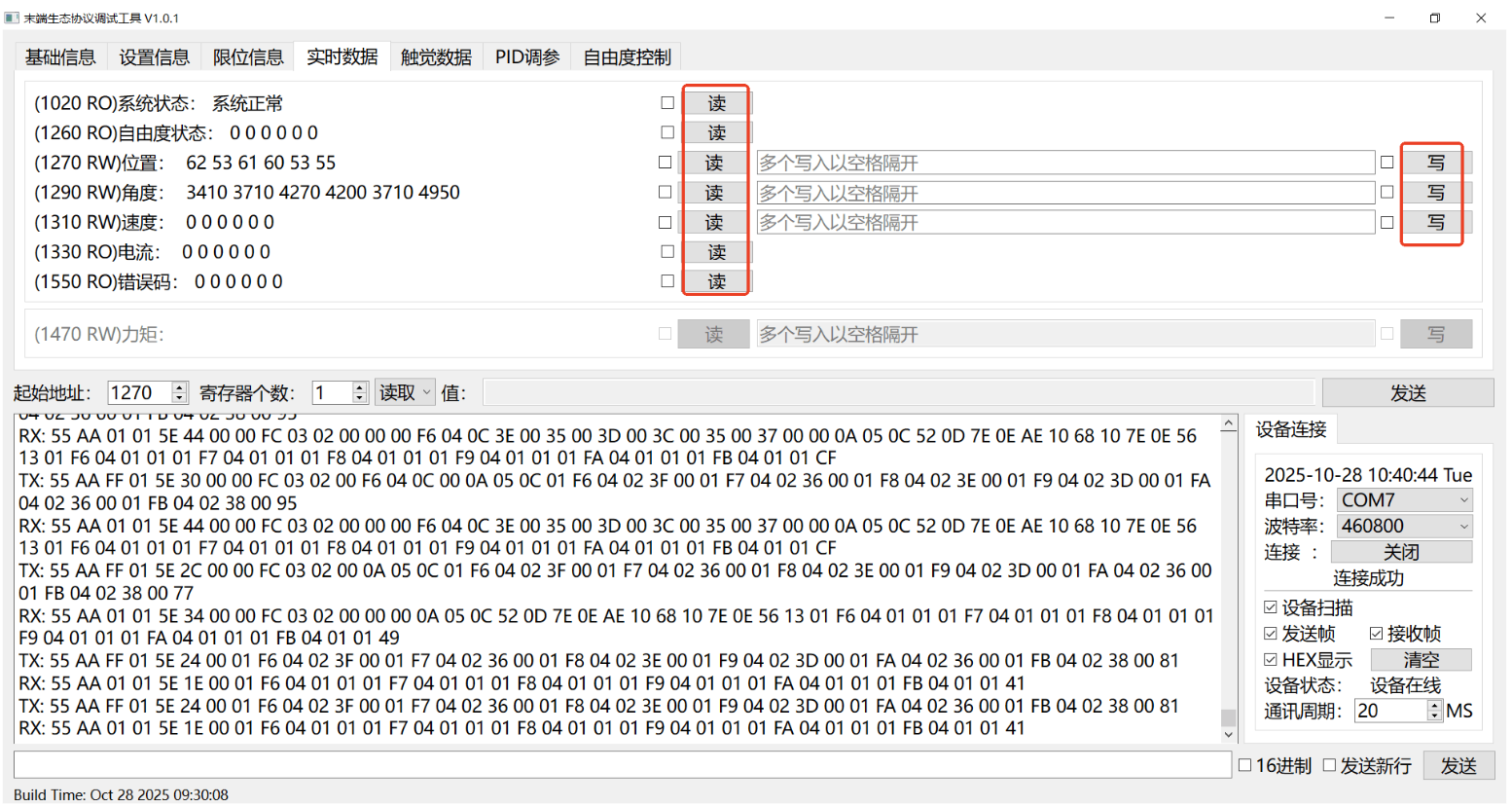
The system provides flexible data interaction methods to meet different debugging and control needs:
- Single Operation: Click the Read or Write button to immediately execute a corresponding read or write command once.
- Periodic Operation: Check the corresponding checkbox, and the system will automatically and cyclically execute read or write commands according to the set communication cycle, suitable for scenarios requiring continuous monitoring or control.
Register Writing and Reading
Single Register Writing and Reading
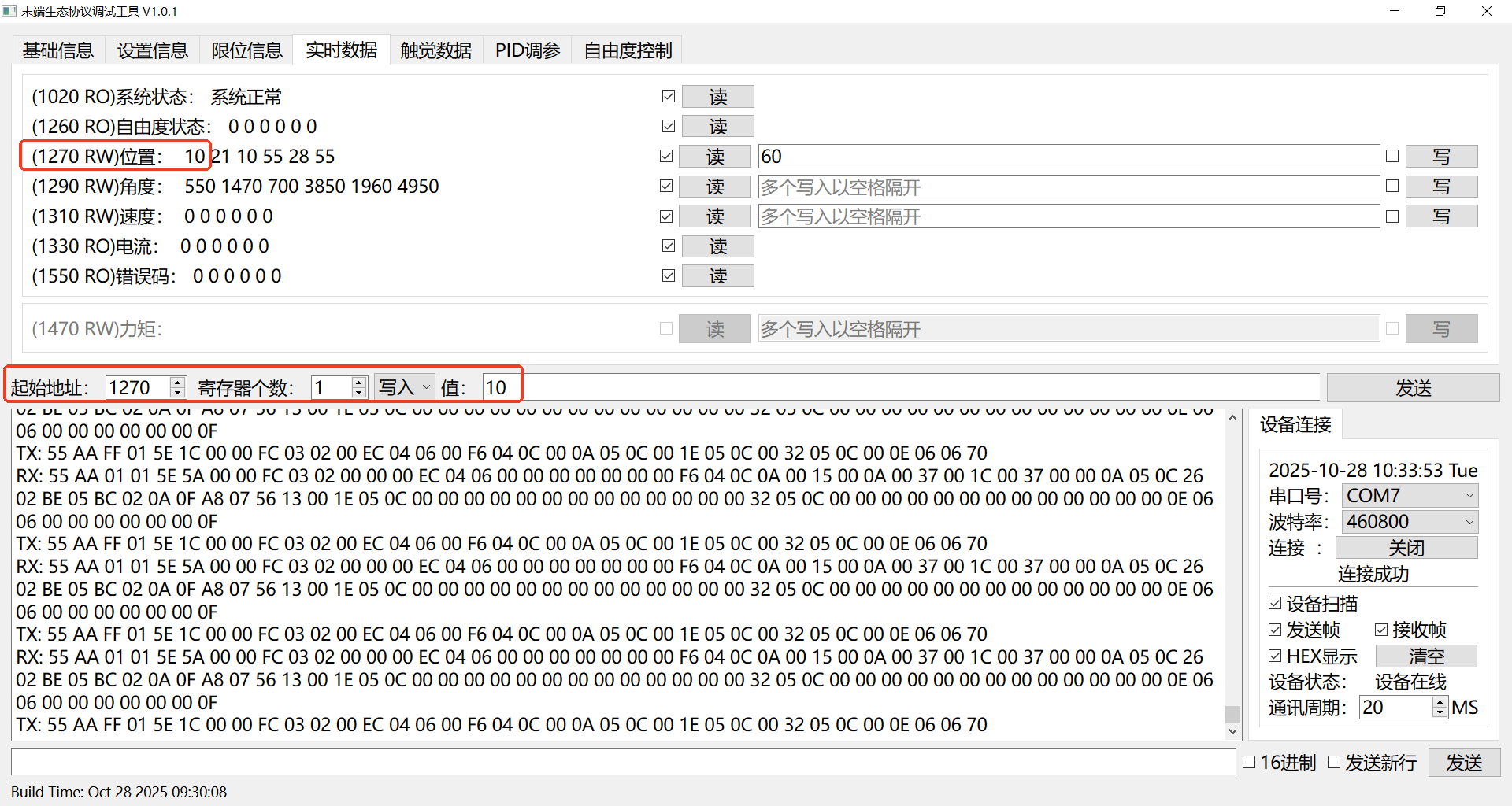
Writing:
- For example, when performing end-device position control, you can directly write the position information for Degree of Freedom 1.
- You can also write to a specified register using address information.
Direct Writing Writing Using Address Information 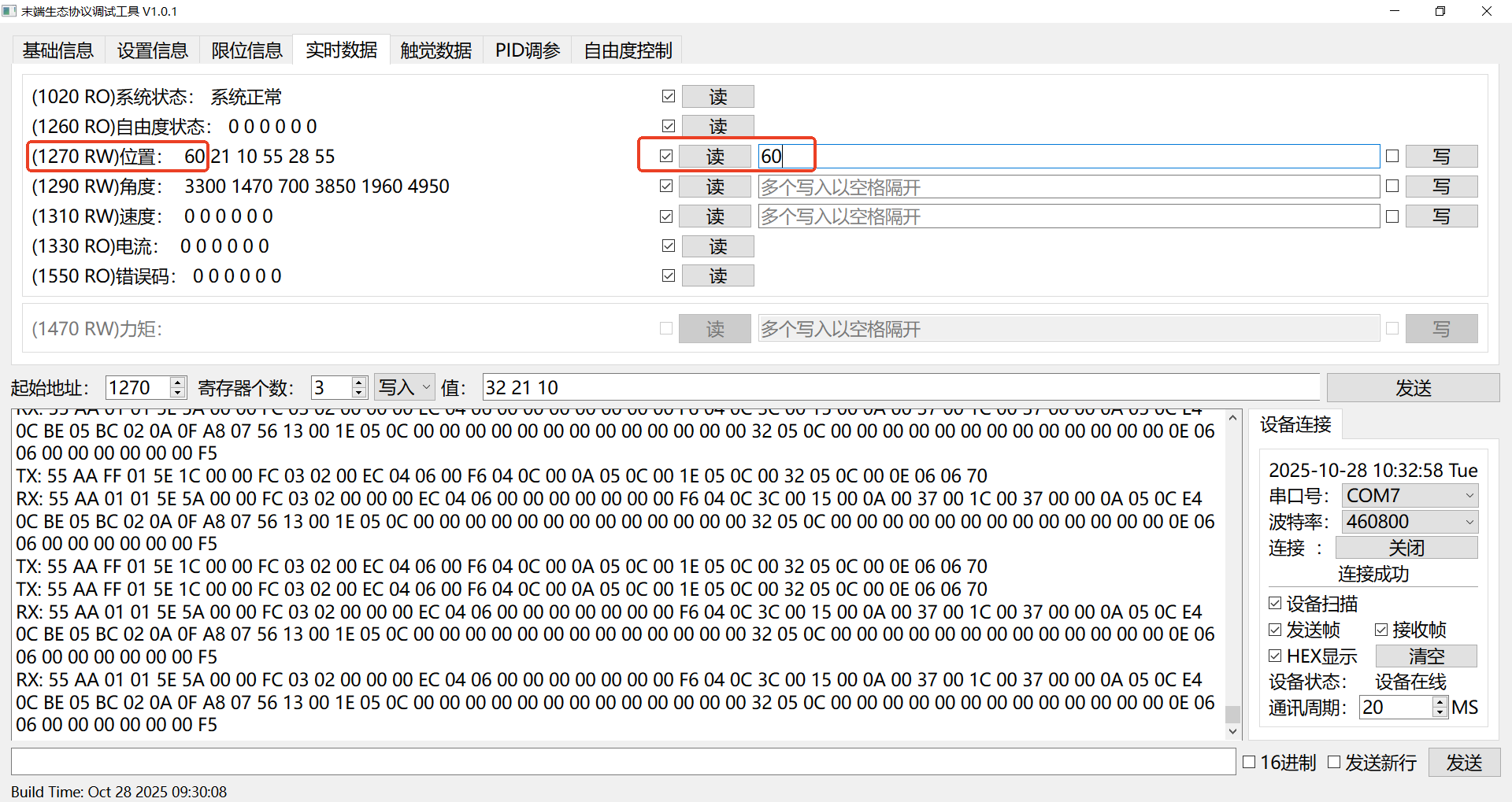
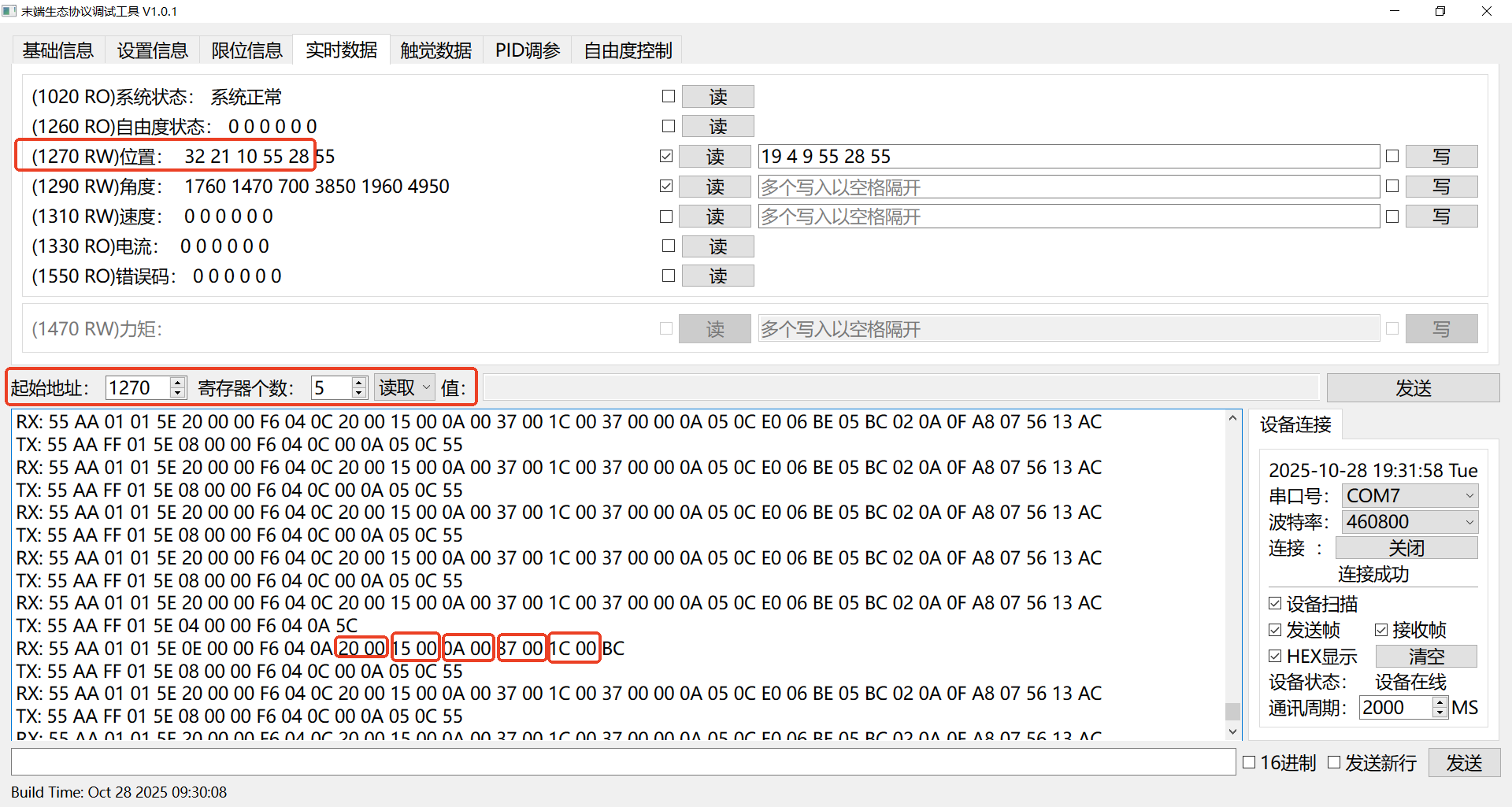
Reading:
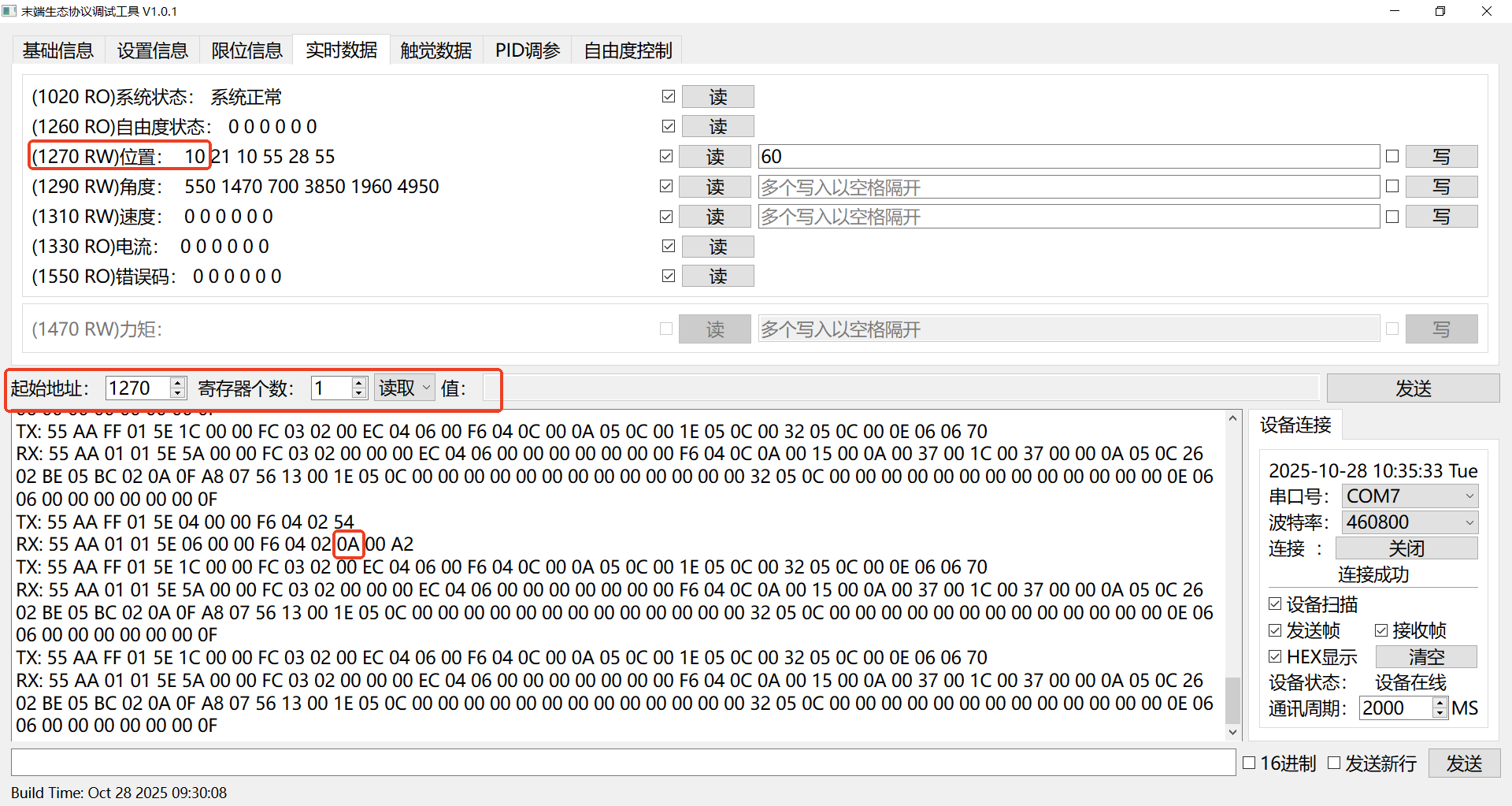
Continuous Register Writing and Reading
Batch Writing
- Supports writing data to multiple consecutive registers at once. Data Format: Multiple decimal values separated by spaces. Application Example: When controlling the end-device pose, you can write target position data for all 6 degrees of freedom at once, e.g.,
19 4 9 55 28 55. - You can also perform batch writing to subsequent consecutive multiple registers by specifying a starting address.
Writing Data to Multiple Consecutive Registers at Once Writing by Specifying a Starting Address 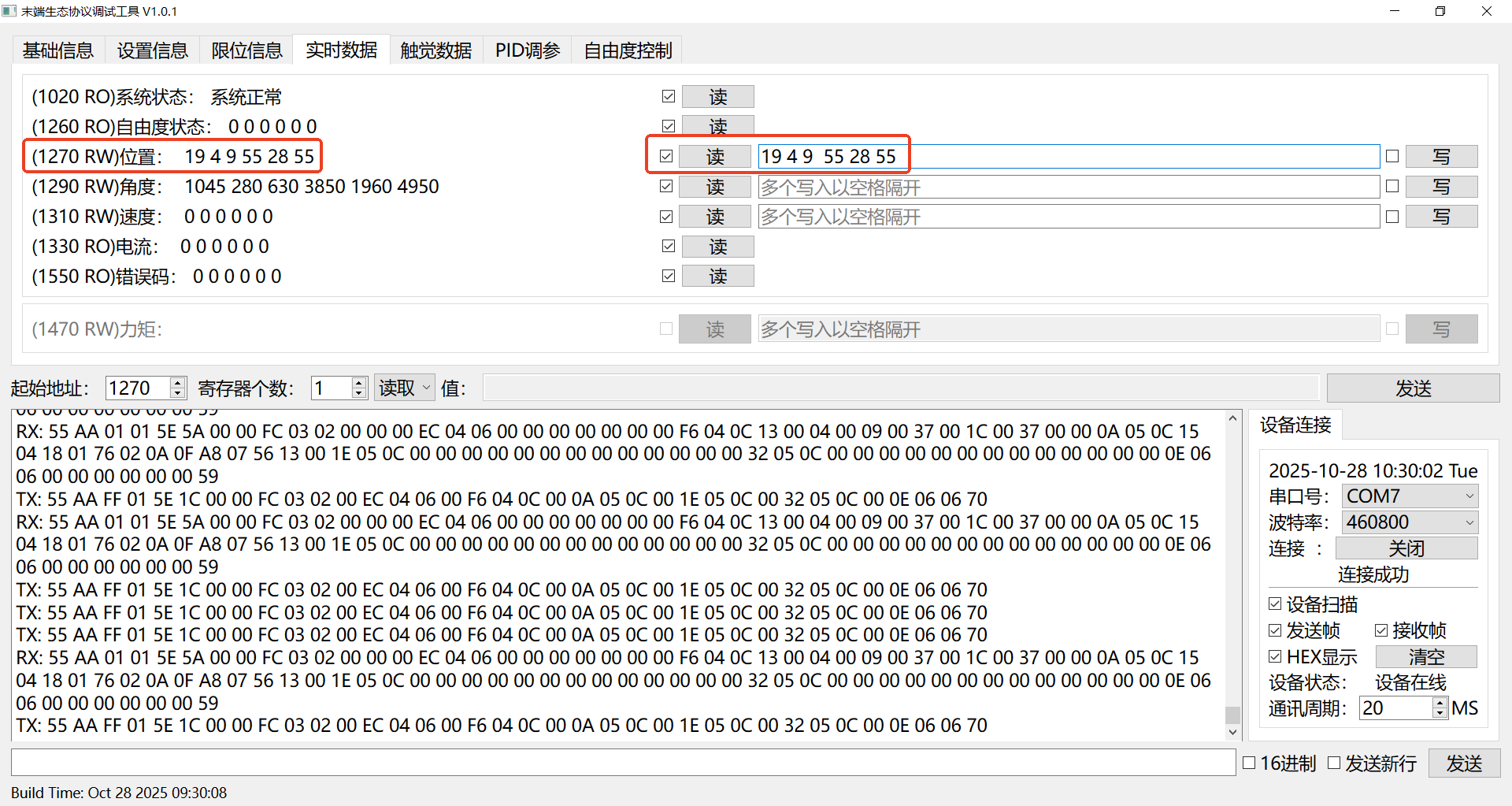
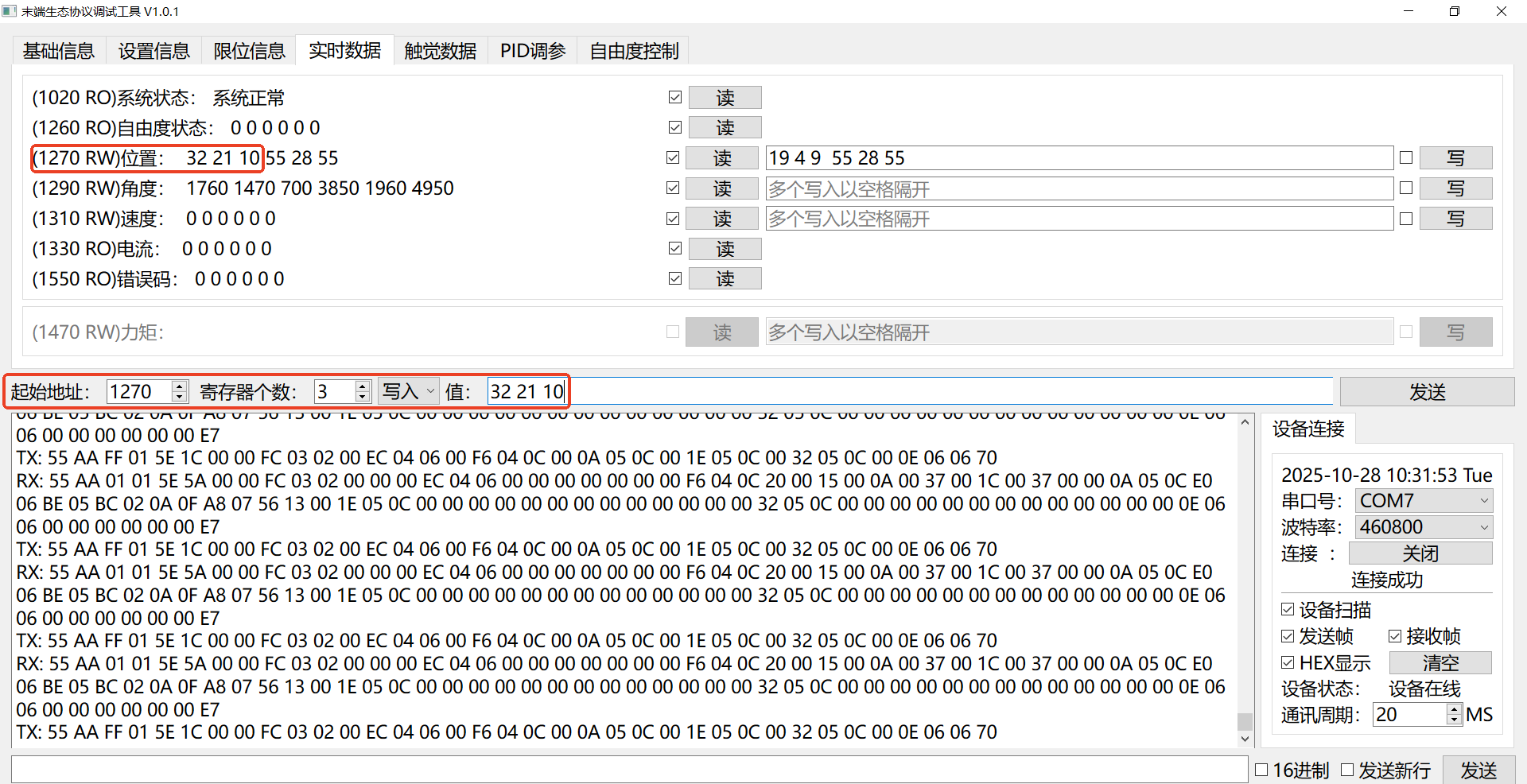
- Supports writing data to multiple consecutive registers at once. Data Format: Multiple decimal values separated by spaces. Application Example: When controlling the end-device pose, you can write target position data for all 6 degrees of freedom at once, e.g.,
Reading
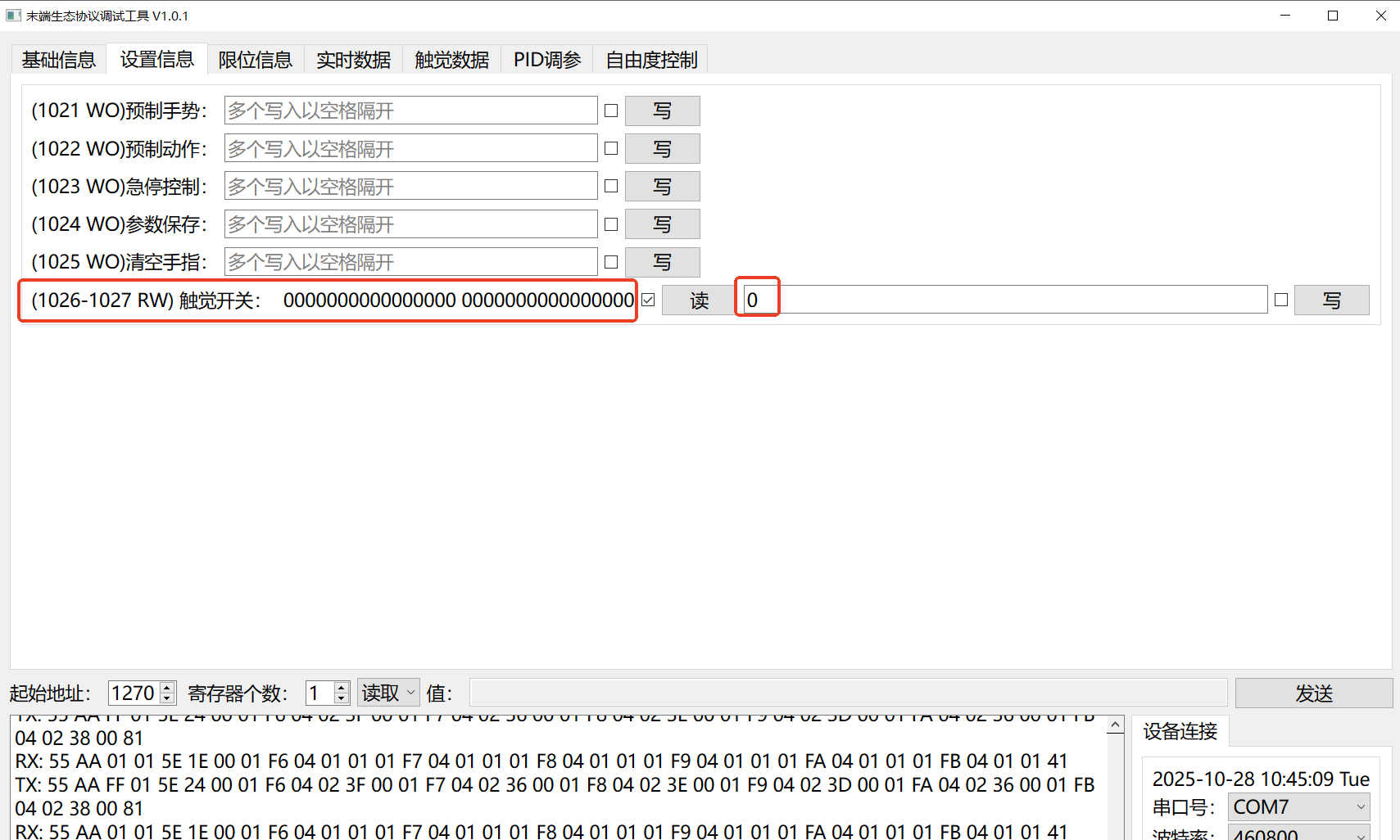
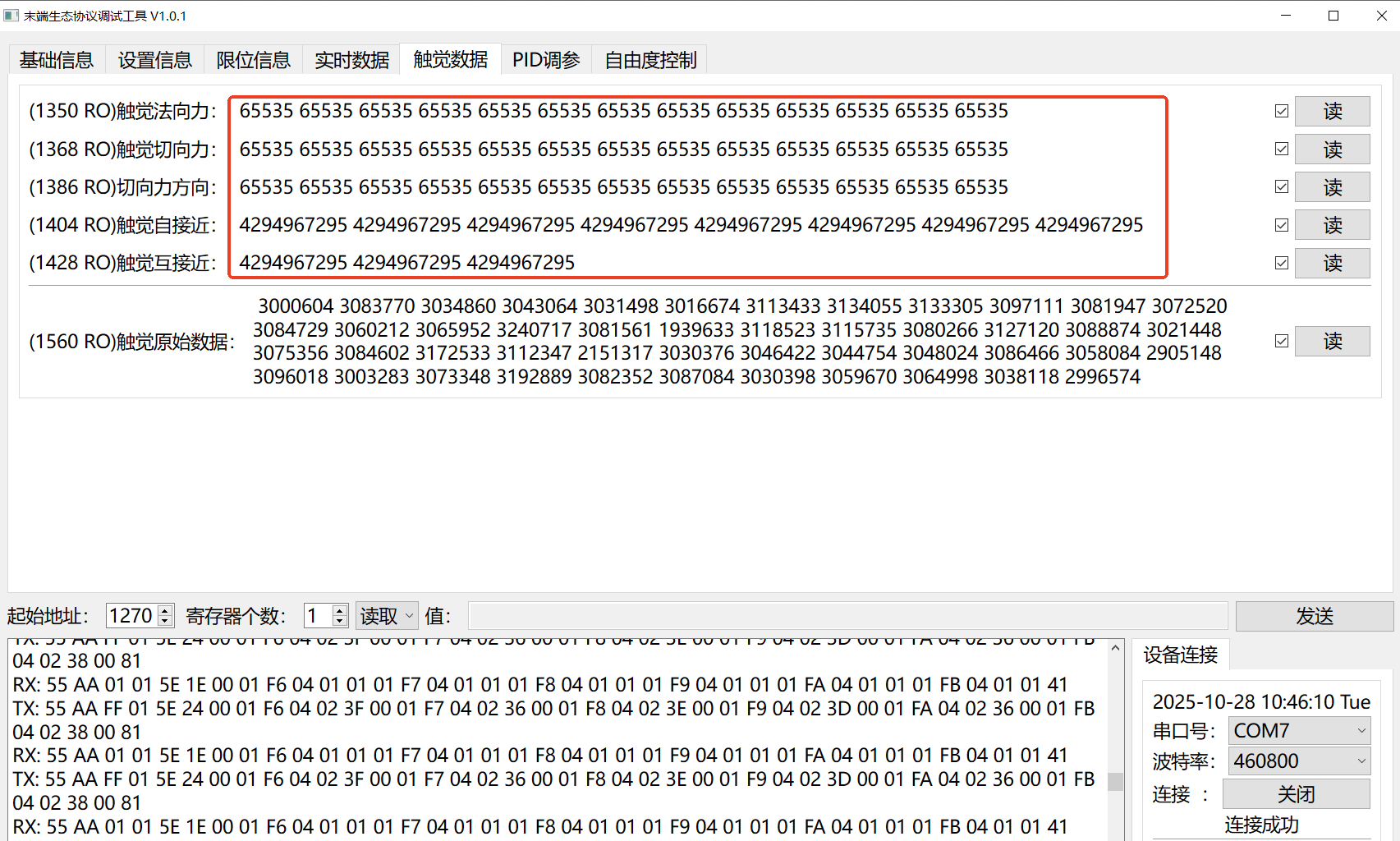
Tactile Information Reading
- Switch Off: Cannot read tactile information.
| Switch Off | Unable to Read Tactile Data |
|---|---|
 |  |
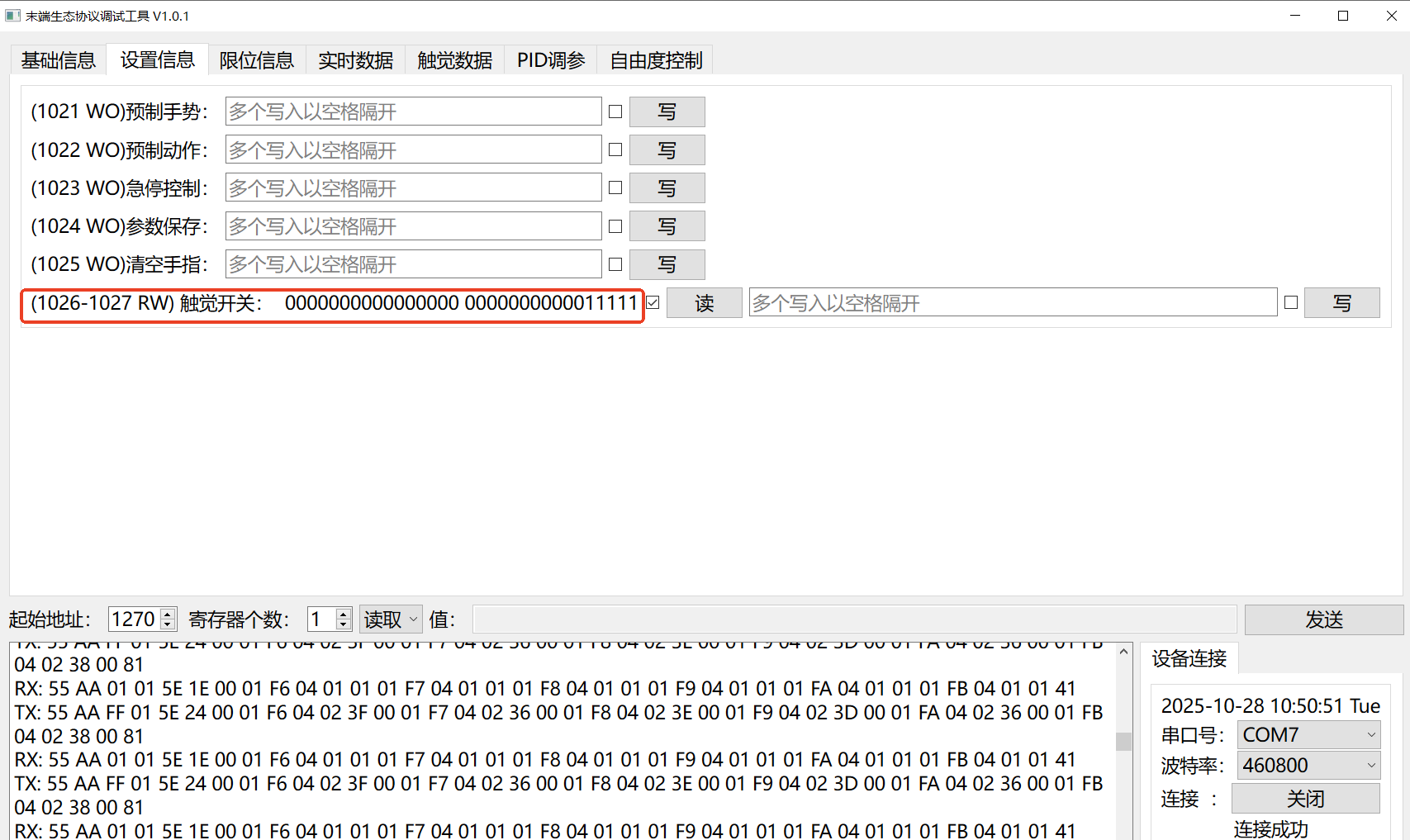
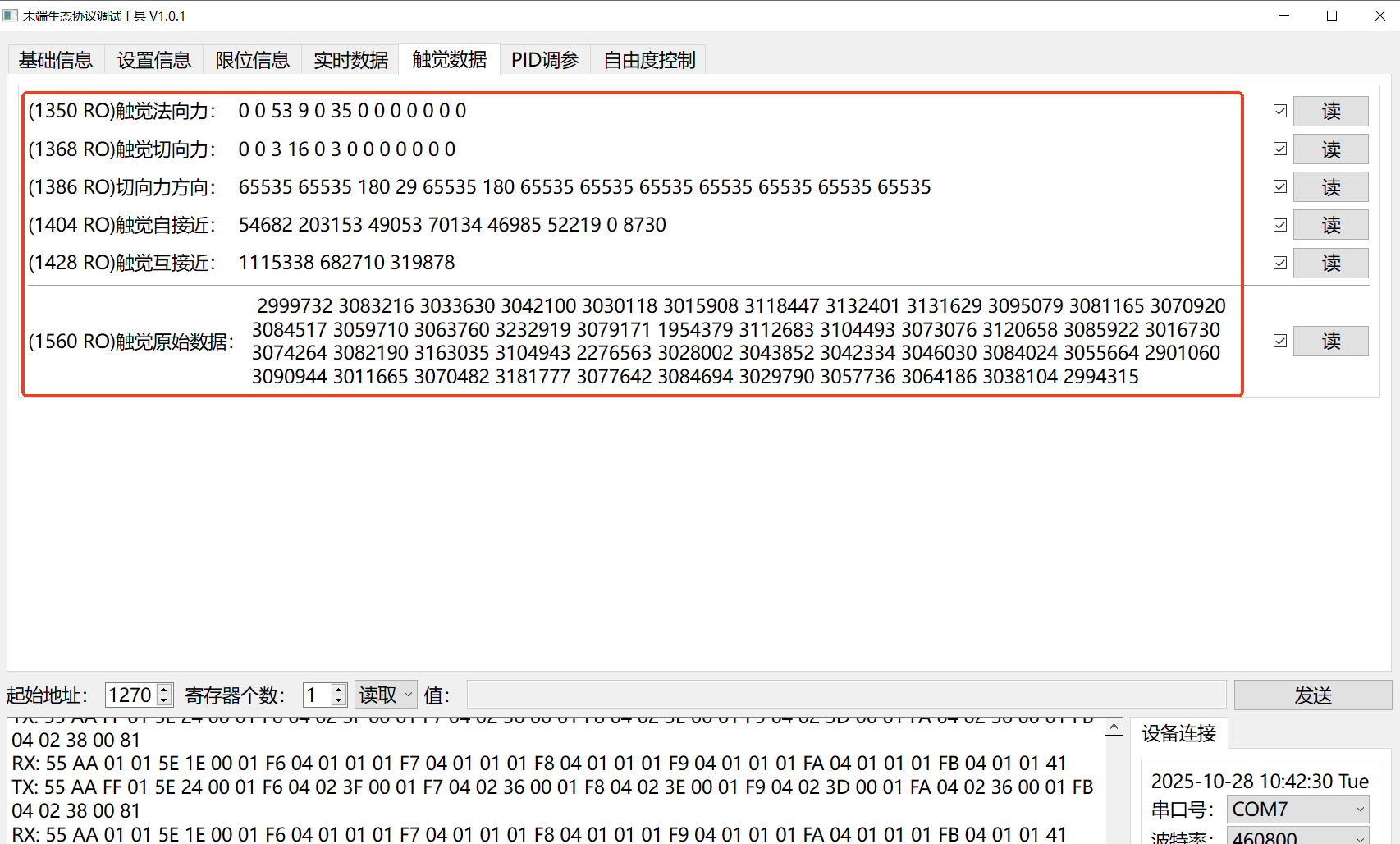
- Switch On: The system will be able to read and display tactile sensor data.
| Switch On | Successfully Reading Tactile Data |
|---|---|
 |  |
Degree of Freedom Control
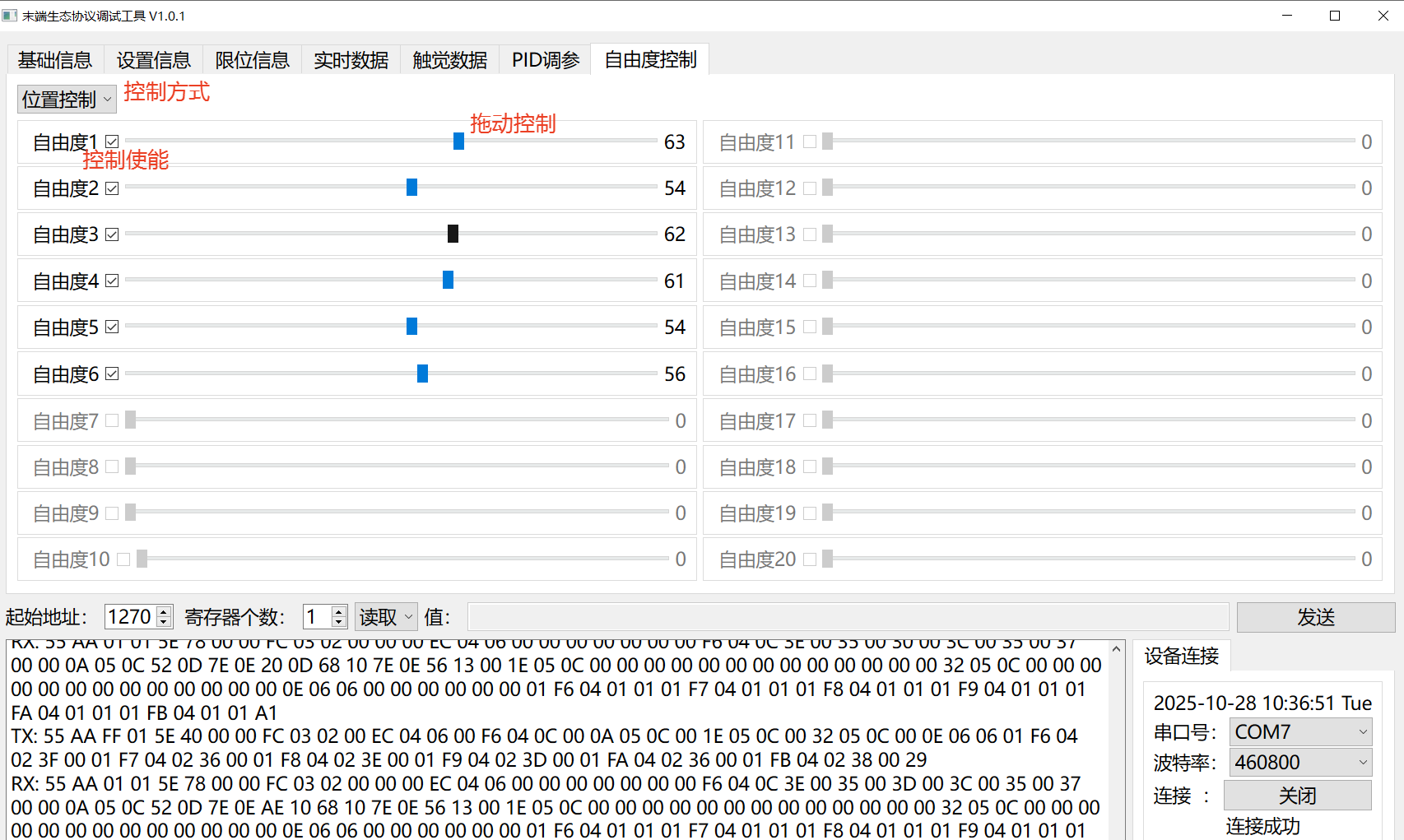
After selecting the control mode, you can independently control each degree of freedom in Free Mode by dragging the sliders, according to the number of degrees of freedom supported by the end device.
Attachment
"RM_ARM+" End Tool Ecosystem Construction - Protocol Standard