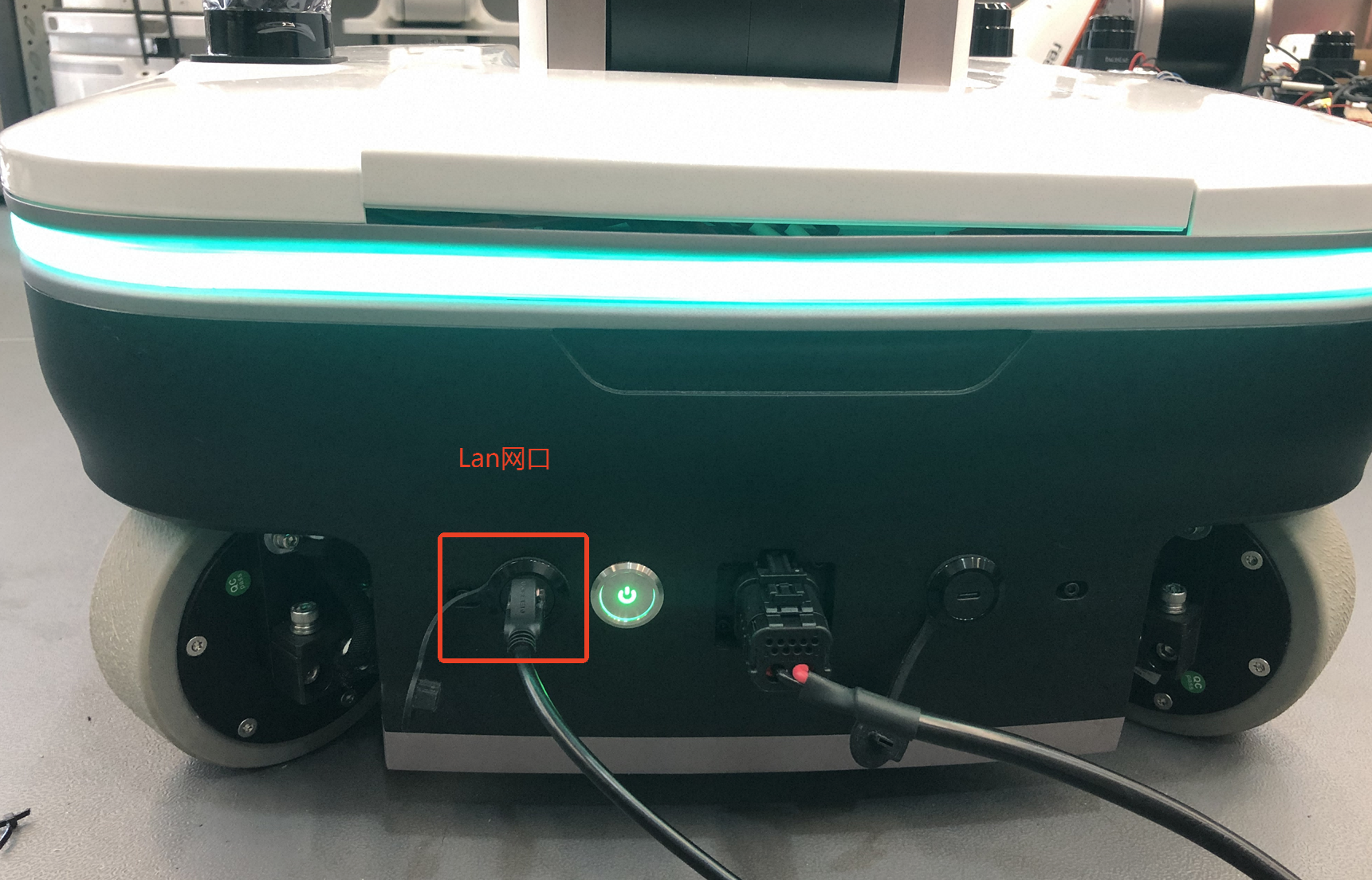

Robot Body Operation:
Network Connection Local Computer Configuration
Modifying the Local Network Segment and Rules
Connect the local computer to the chassis LAN port with a network cable.
Set the local computer's network segment to "192.168.128.*", as shown in the example below.
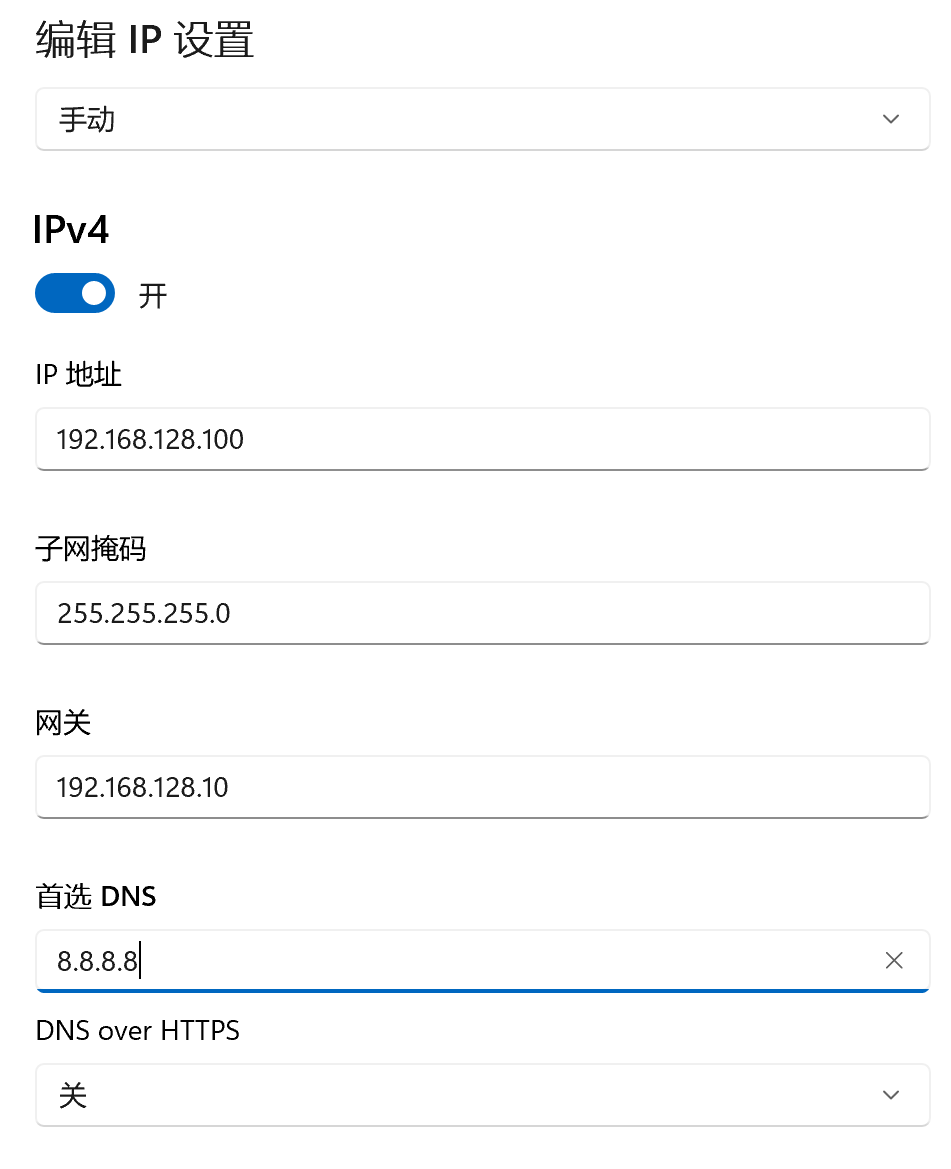
Configure the network rules on the local computer
Search for cmd in Windows, right-click and select "Run as administrator" to open a terminal window, as shown below.
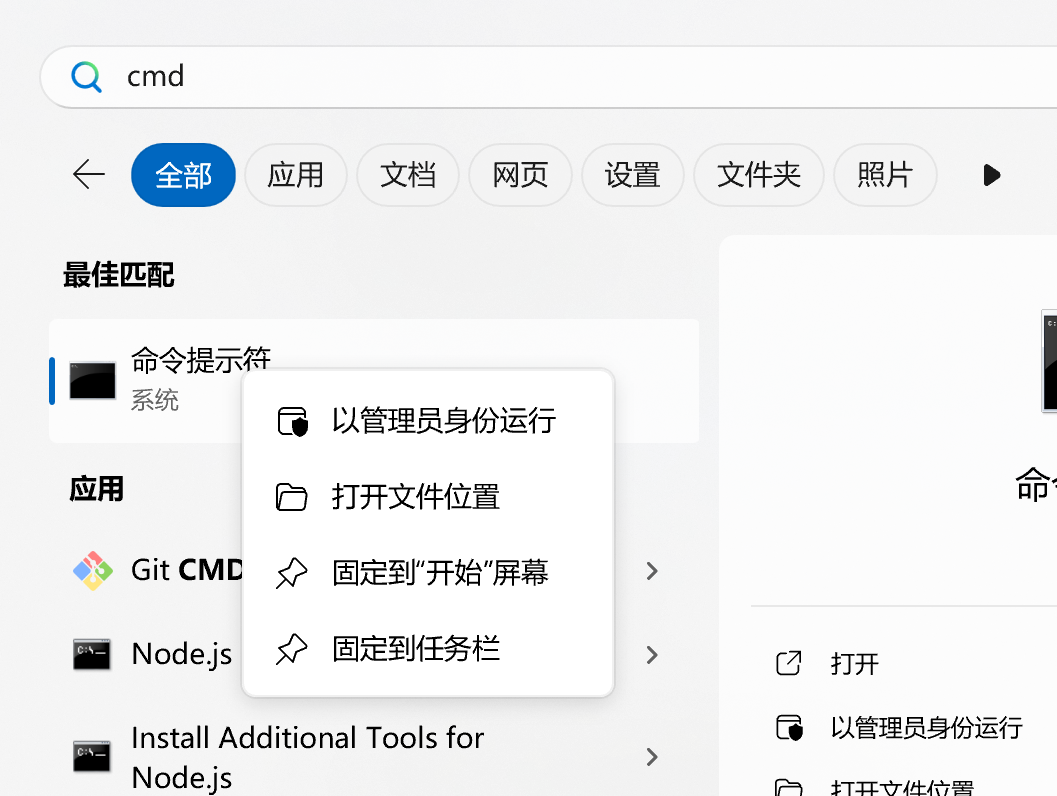
Run the following command:
shell# Run in an administrator terminal when the local computer has multiple network adapters route add 192.168.127.0 mask 255.255.255.0 192.168.128.10The result is shown below:

Connecting to the Robot from a Terminal
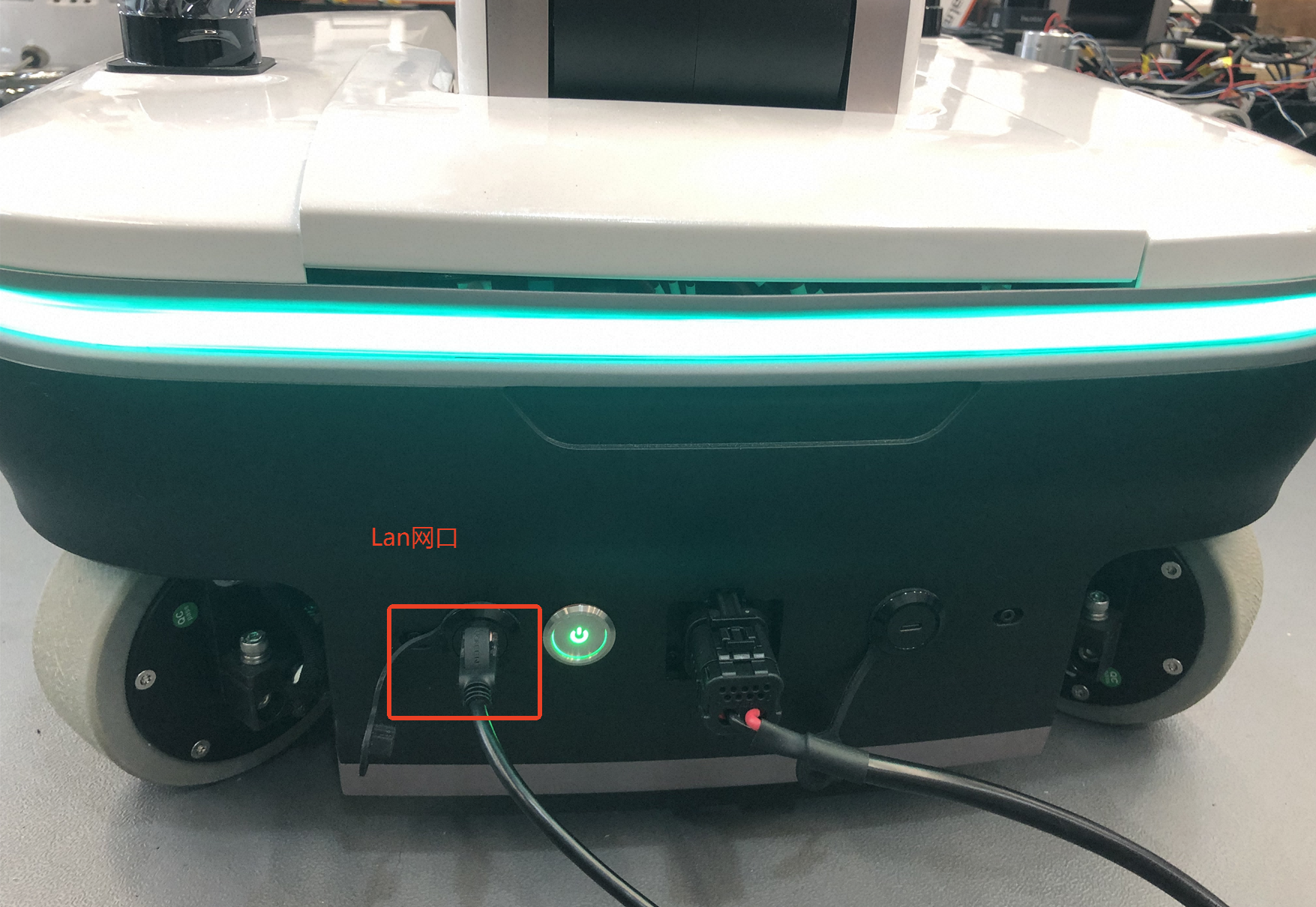
Connect the local computer to the chassis LAN port of the robot with a network cable
Access 192.168.128.10 via SSH from the local computer terminal; both the username and password are realman
ssh realman@192.168.128.10Connecting to an External Network
The robot can access an external network in two ways: wireless Wi-Fi, or a wired connection to the WAN port. Both methods are described below.
Connecting via Wi-Fi
Make sure the local computer terminal has established an SSH connection to 192.168.128.10. See Connecting to the Robot from a Terminal;
Obtain the Wi-Fi name and password at the customer site or event venue.
Connect to the Wi-Fi using commands;
- Check the Wi-Fi status
shell# Check the Wi-Fi status and look for Wi-Fi type devices. "enabled" means Wi-Fi is on, "disabled" means off. nmcli radio wifi # If the command above returns disabled, run the following command; skip it if it returns enabled. nmcli radio wifi on- Run the following command in the SSH terminal to connect to the Wi-Fi (if the Wi-Fi name or password changes, replace the corresponding values in the command and run it again):
shell# Command format for connecting to Wi-Fi echo realman | sudo -S nmcli device wifi connect "wifi name" password "wifi password" ifname wlP1p1s0 # Example (replace "wifi name" and "wifi password" with the actual Wi-Fi name and password at the customer site): echo realman | sudo -S nmcli device wifi connect "realman" password "realman" ifname wlP1p1s0
Connecting via Ethernet
If the on-site network signal is weak, plug one end of a network cable into the on-site network floor outlet and the other end into the WAN port on the robot's waist, so that the robot connects to the network via cable for a stable network environment.
Make sure the local computer terminal has established an SSH connection to 192.168.128.10. See Connecting to the Robot from a Terminal;
Turn off Wi-Fi
shell# Turn off Wi-Fi nmcli radio wifi offCheck the network adapter connection status:
shell# Check the status of network devices nmcli device status
Under normal conditions, you should see:
Wired adapter (eth0/enp*): status connected
Wireless adapter (wlP1p1s0): status disconnected or unavailable
Verifying Internet Connectivity
After connecting via Wi-Fi or Ethernet as described above, run the following command in the local computer terminal to verify Internet connectivity.
ping baidu.comIf the output looks like the figure below, the robot is connected to the Internet.

Obtaining the Robot's External IP
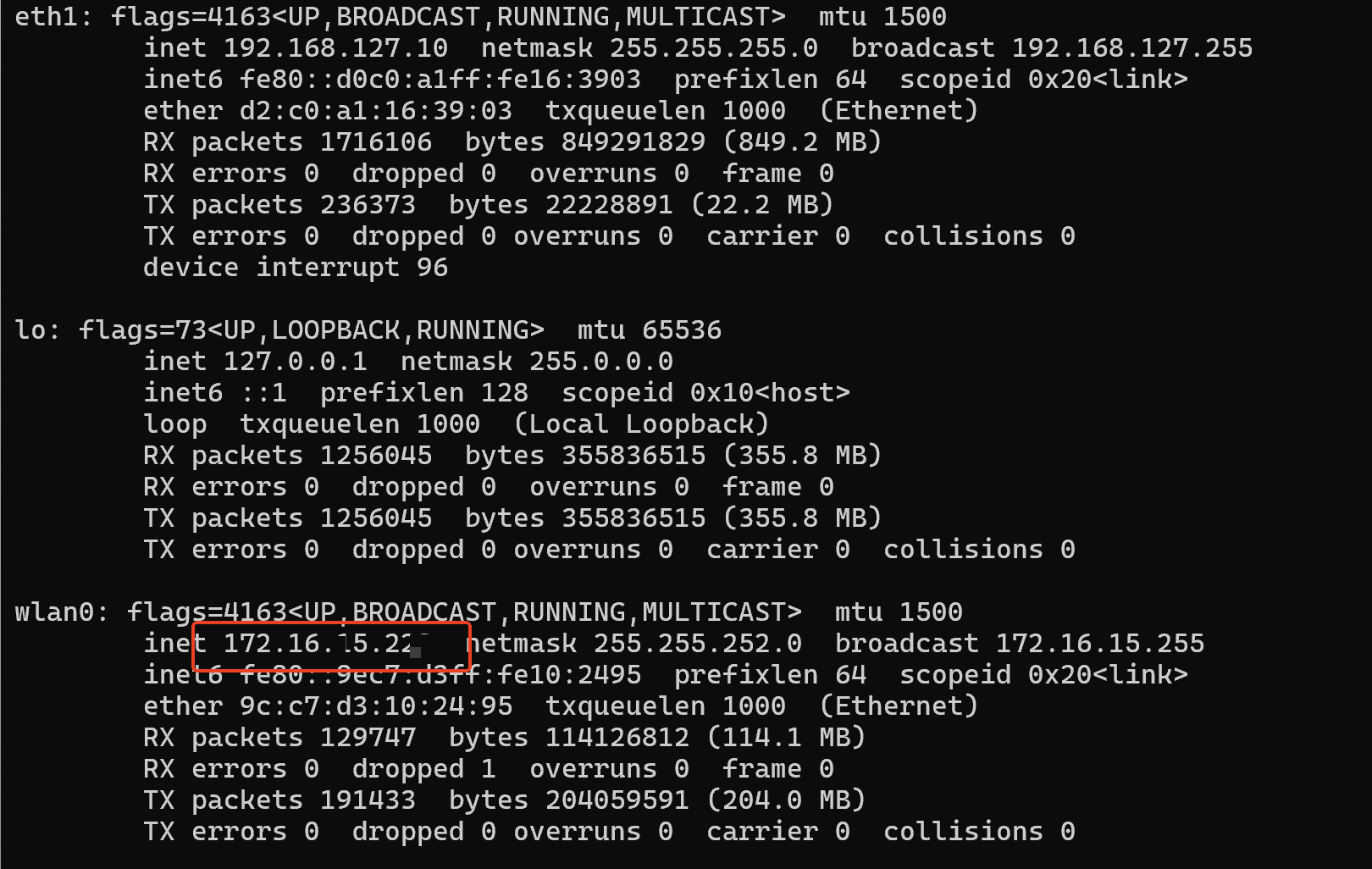
After the robot connects to the Wi-Fi, enter the following command in the SSH terminal connected to the robot:
shellifconfigObtain the external IP assigned by the Wi-Fi or wired network.
Once the external IP is obtained, the local computer on the same Wi-Fi network as the robot can connect to the robot via SSH, or access the robot's teaching pendant, without a network cable.
Connecting to a Local Network
Scenario 1: When the robot needs to perform local teleoperation, plug one end of a network cable into the port on the left side of the robot chassis rear (LAN port, as shown below) and the other end into a switch, forming a local network with the teleoperation master arm.
Scenario 2: When the local computer of a user or O&M personnel needs to access the robot operating system, connect to the LAN port with a network cable, or plug into the switch described in Scenario 1.