
Robot Teaching Pendant:
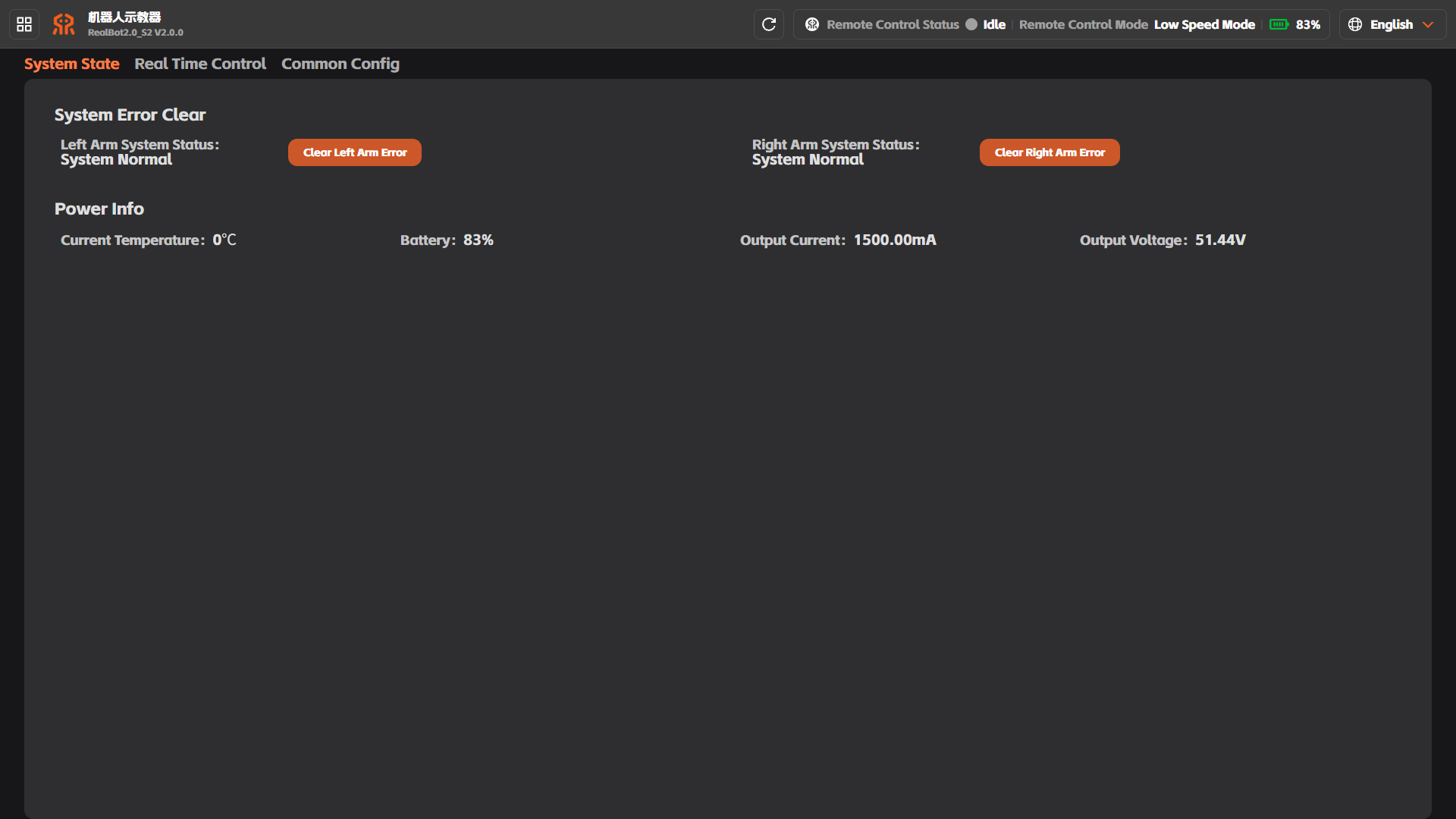
System Settings System State
On the [System Settings] - [System State] page, you can view the state values of the left arm, right arm, and battery, and clear system state errors of the left and right arms on this page.
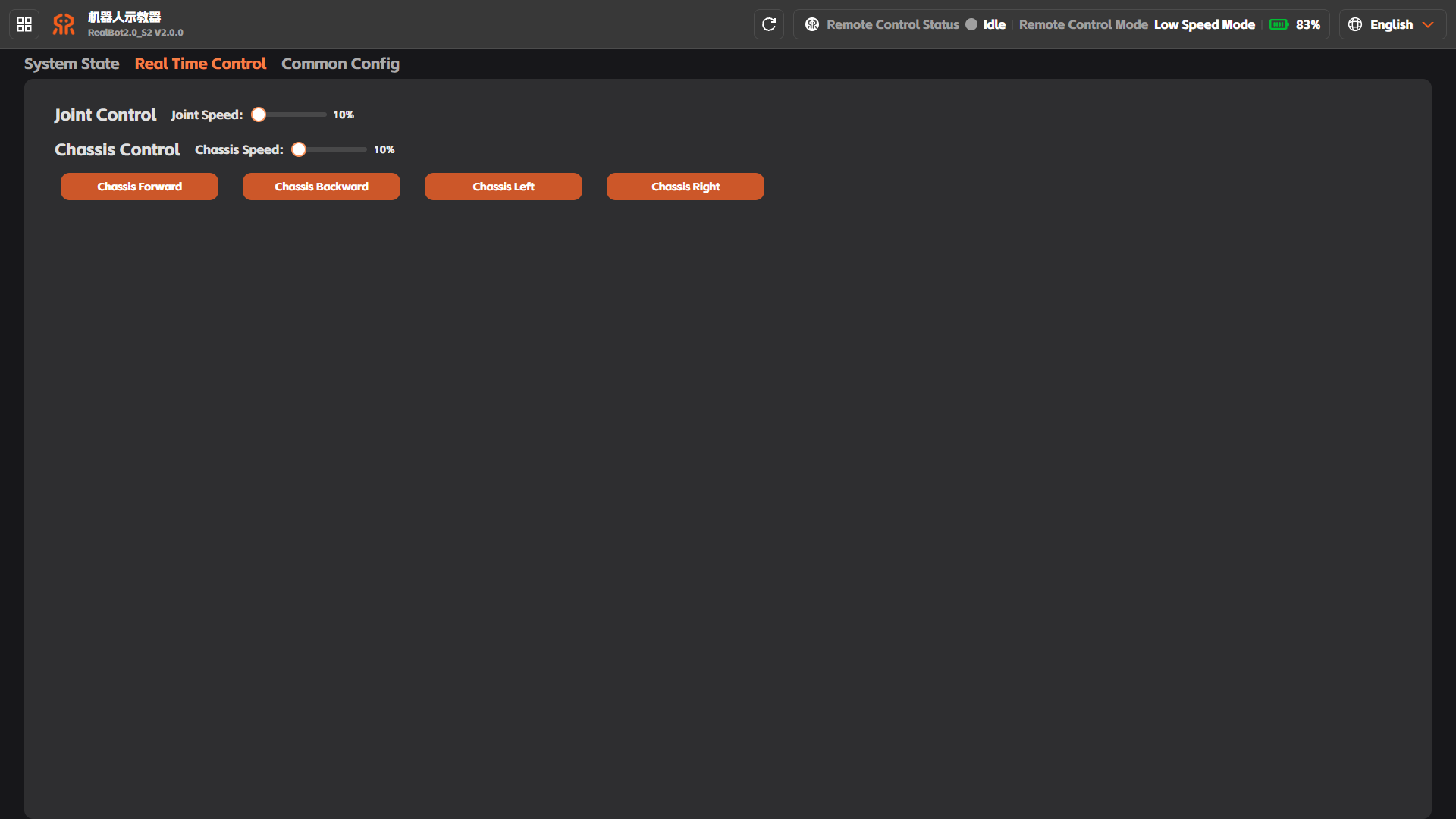
Real-Time Control
On the [System Settings] - [Real-Time Control] page, you can control the chassis to move forward, backward, left, or right (press and hold a direction button to keep the chassis moving in that direction; the motion stops immediately once the button is released).
Note
It is not recommended to set the joint speed or chassis speed too high. Configure them according to the on-site space and task requirements, and start with low speeds at first operation to avoid safety risks caused by excessive speed.
The four wheels are set at a 45° angle when the robot is stationary. If you need to push the robot while it is powered off, press the [Chassis Forward] button on this page briefly before powering off to straighten the wheels, then cut off the power quickly. After that, the robot can be pushed while powered off.
General Configuration
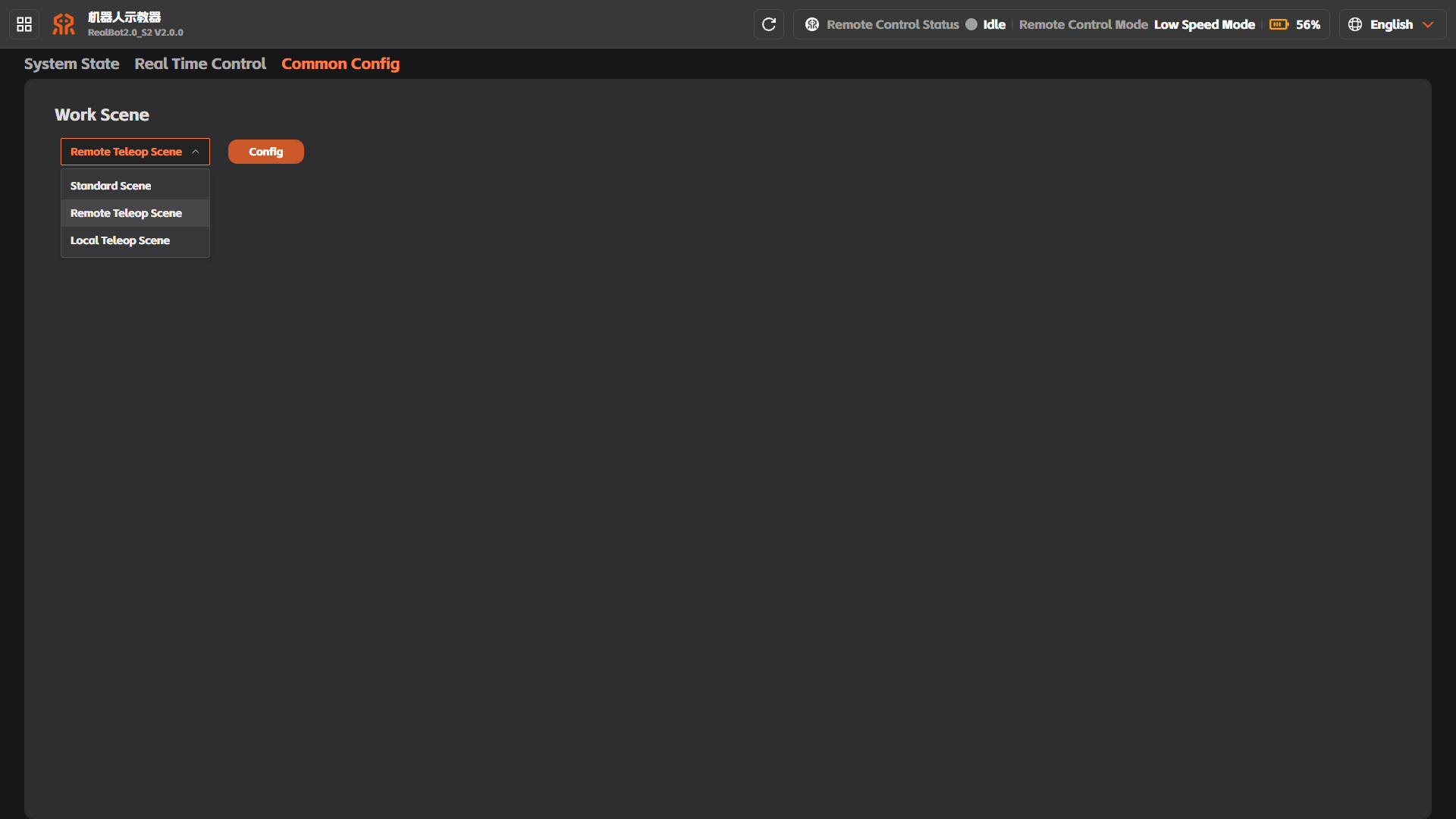
On the [System Settings] - [General Configuration] page, you can switch the working scenario. After switching the scenario, click the [Configure] button and restart the robot for the change to take effect.
Local teleoperation: For scenarios where the RX71 teleoperation arm is connected directly to the robot via a network cable for teleoperation, select this option;
Standard scenario: For scenarios where the Aloha servo arm is connected directly to the robot via a network cable for local teleoperation, select this option;
Remote teleoperation: For scenarios using the RealMan GLN remote teleoperation solution with teleoperation via an industrial computer, select this option.